Author:
Faris Z.

This is a guideline to onboard vendor organization in MSP - Saviynt
- Requirement to onboard vendor organization
- SM Vendor ID - Please get the vendor ID in Ariba.
- HP Sponsor Role - Follow this guideline to request for HP Sponsor Role.
- Follow the steps below to onboard organization
- Login to Saviynt
- Click on "Start an Access Request"
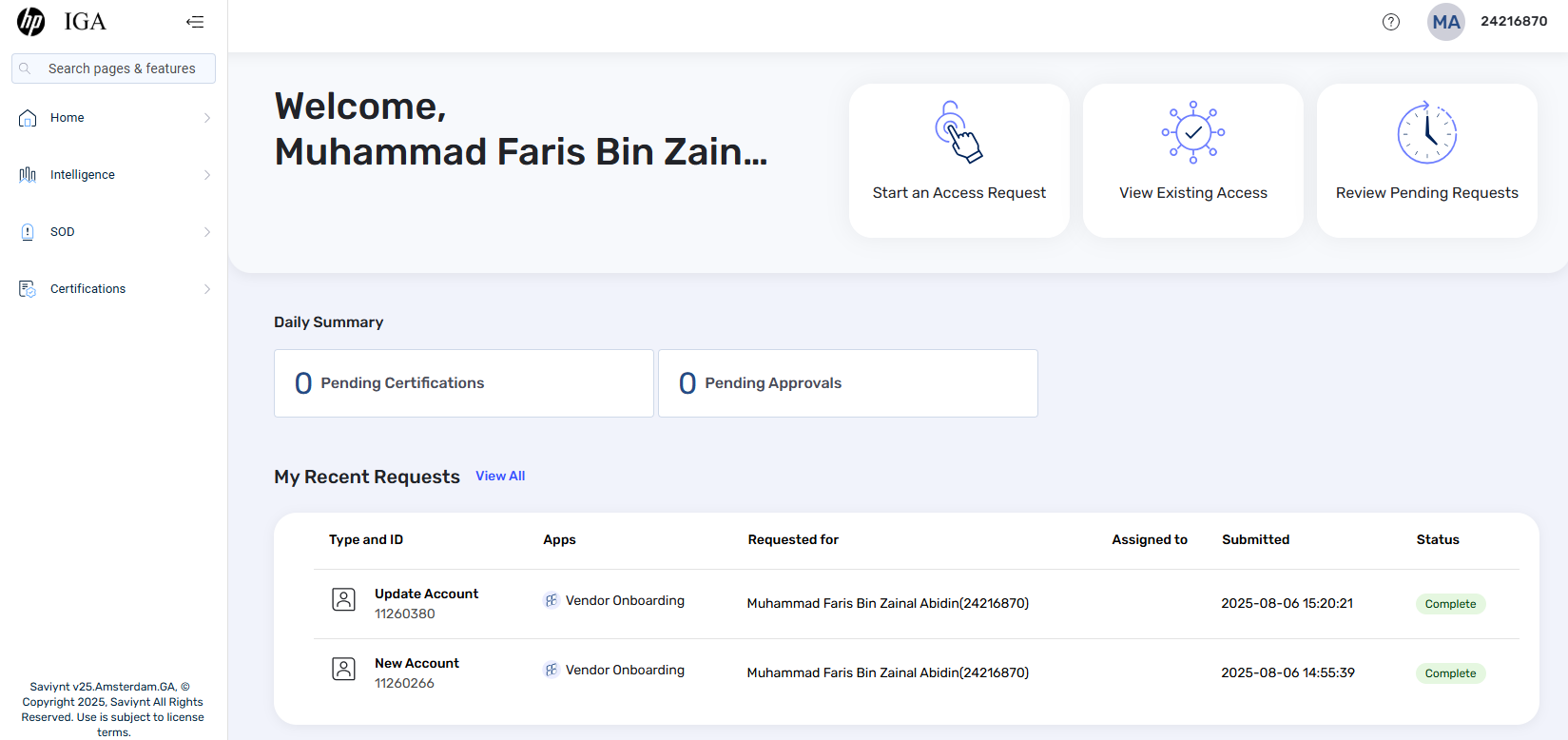
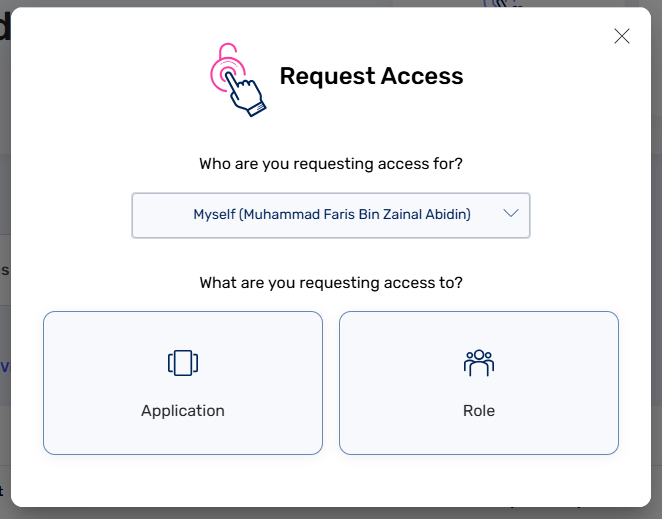
- In the pop-up menu, ensure that you are requesting for yourself. Click "Application" to proceed to the next page.
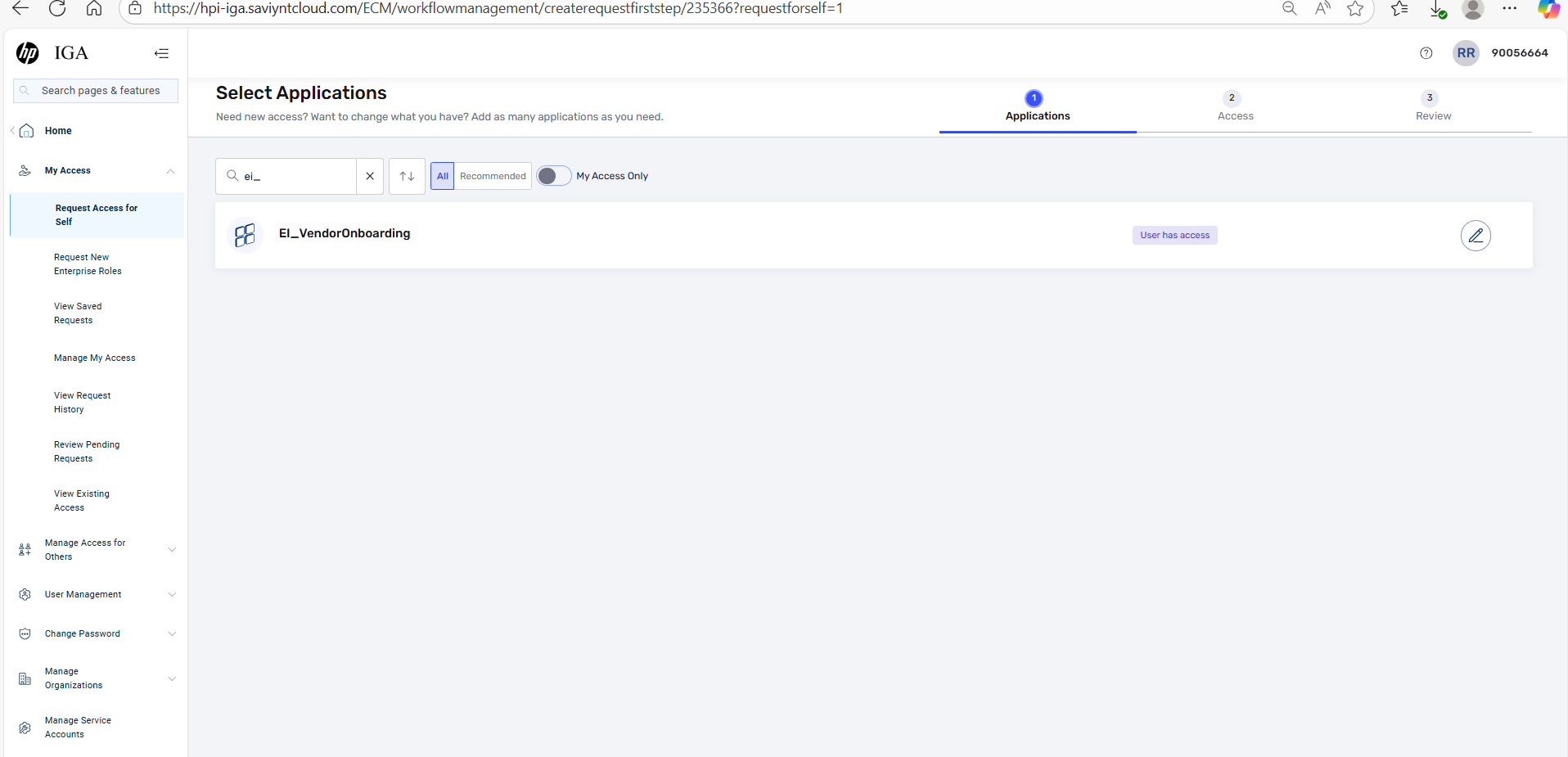
- Search for "EI_Vendor Onboarding" in the search box and click the search icon or press enter on your keyboard.
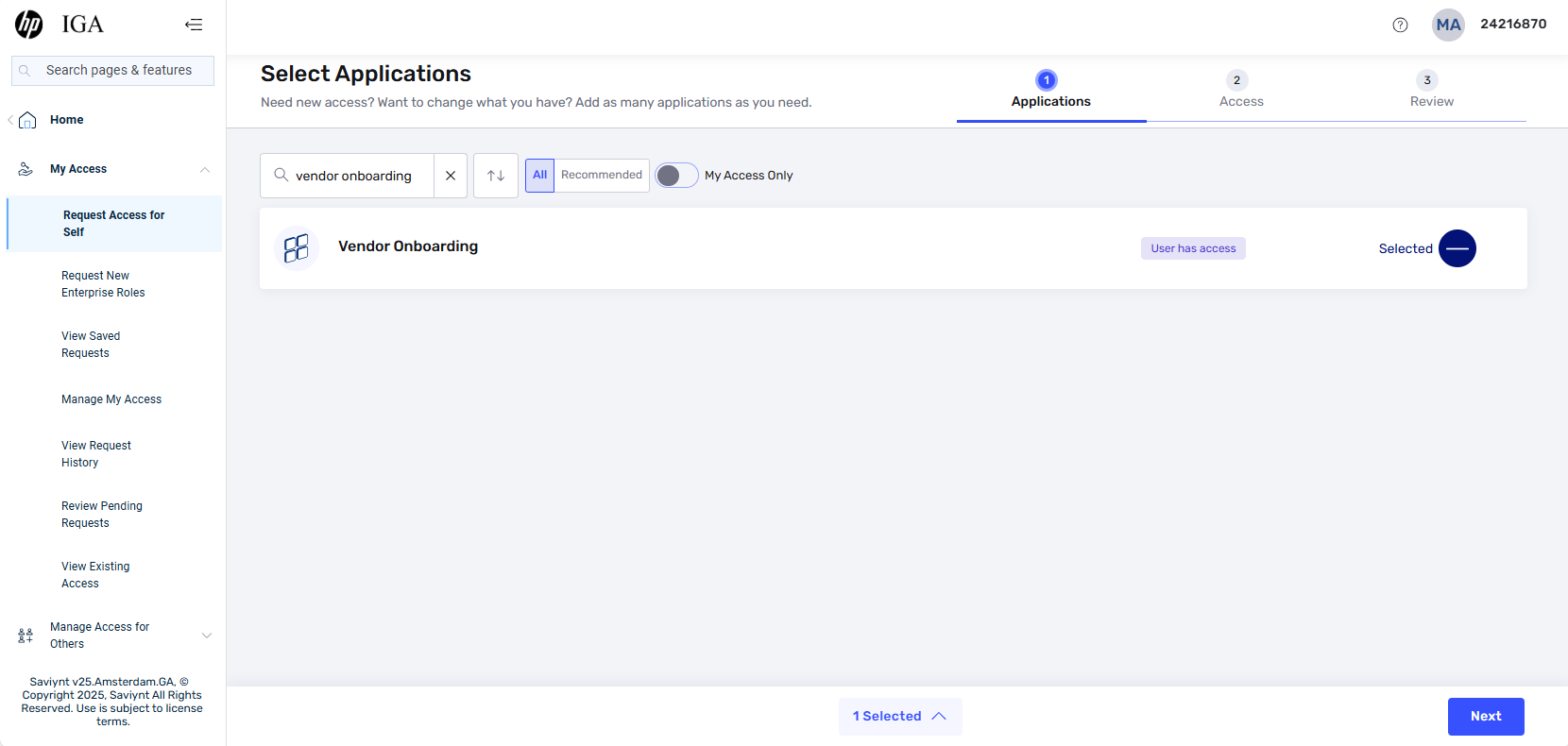
- First time user will see the "+" icon on the far right, for user who has onboard organization will see "User has access" and pencil icon. Click on the "+" or "Pencil" icon. Then click the button "Next" on the bottom right corner to proceed.
- Scroll down to fill up the details
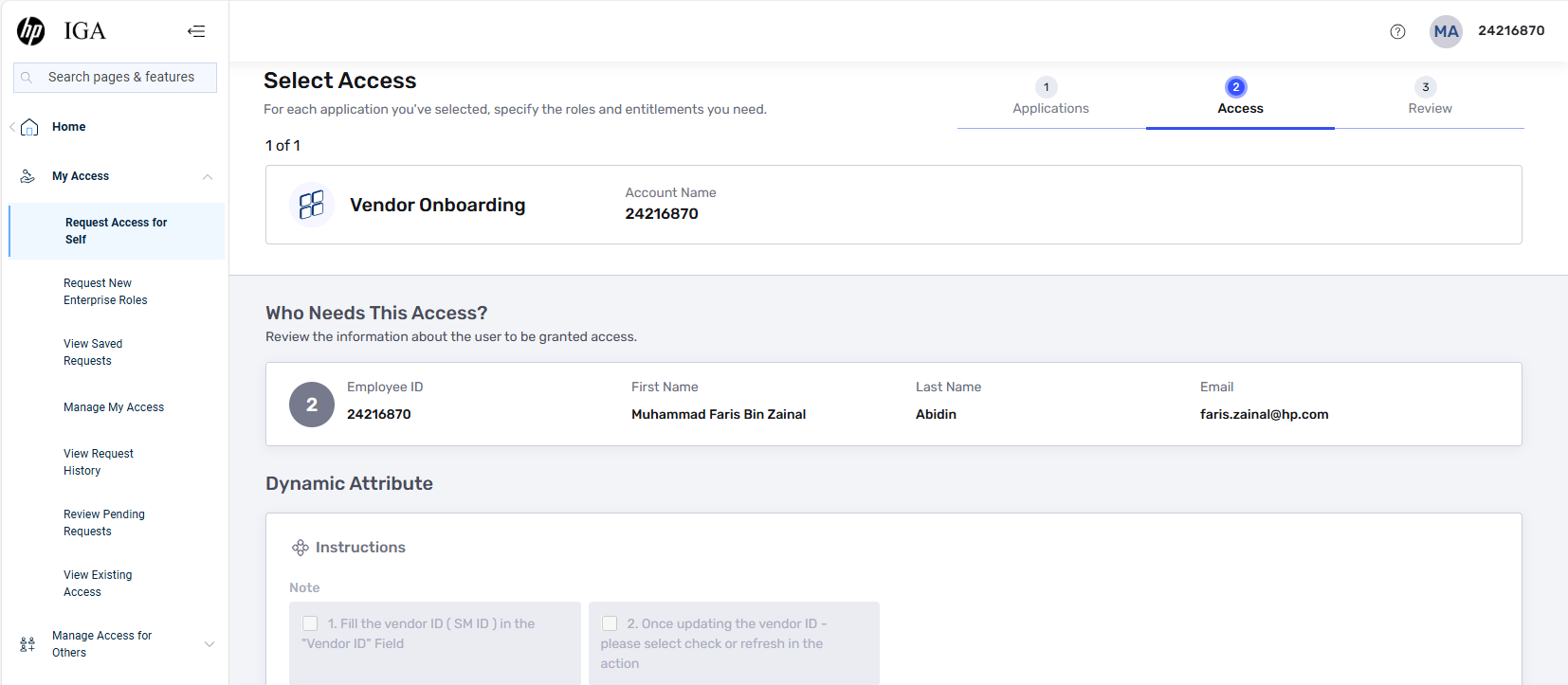
- Insert SM Vendor ID in the "Vendor ID" field
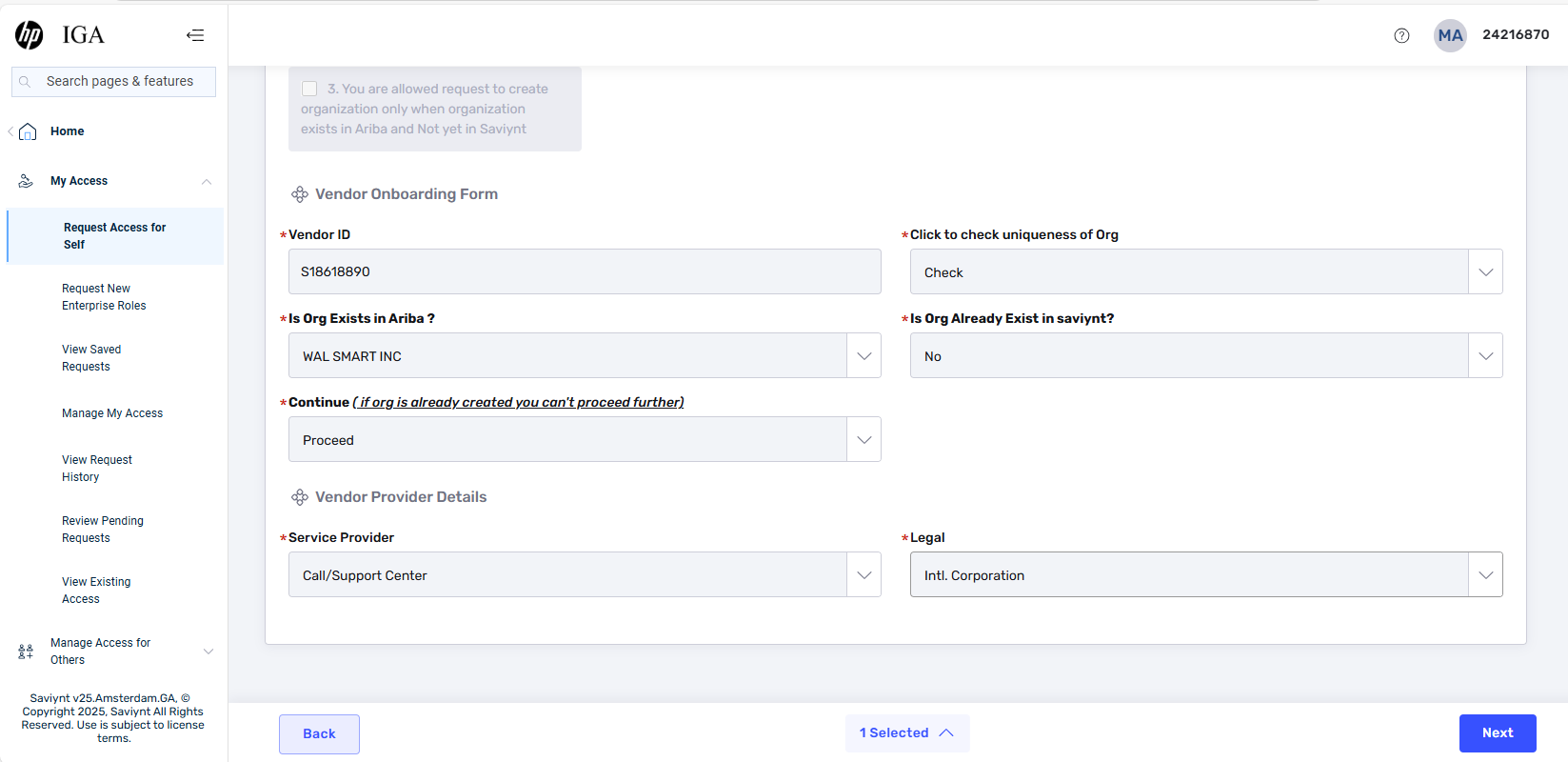
- In the "Click to check uniqueness of Org", select "Check" or "Refresh" in the drop-down selection
- If the organization exist in MSP-Saviynt, the "Is Org Exist in Ariba" will return empty value and the "Is Org Already Exist in Saviynt" will return "No" value. The "Continue" field will also return with empty value.
- Ensure that the "Is Org Exist in Ariba" return with organization name value, the "Is Org Already Exist in Saviynt" with "Yes" value and "Continue" with Proceed value.
- Select the "Service Provider" type in the drop-down selection
- Select the "Legal" type in the drop-down selection.
- Once complete, click "Next"
- Insert justifications in the comment section
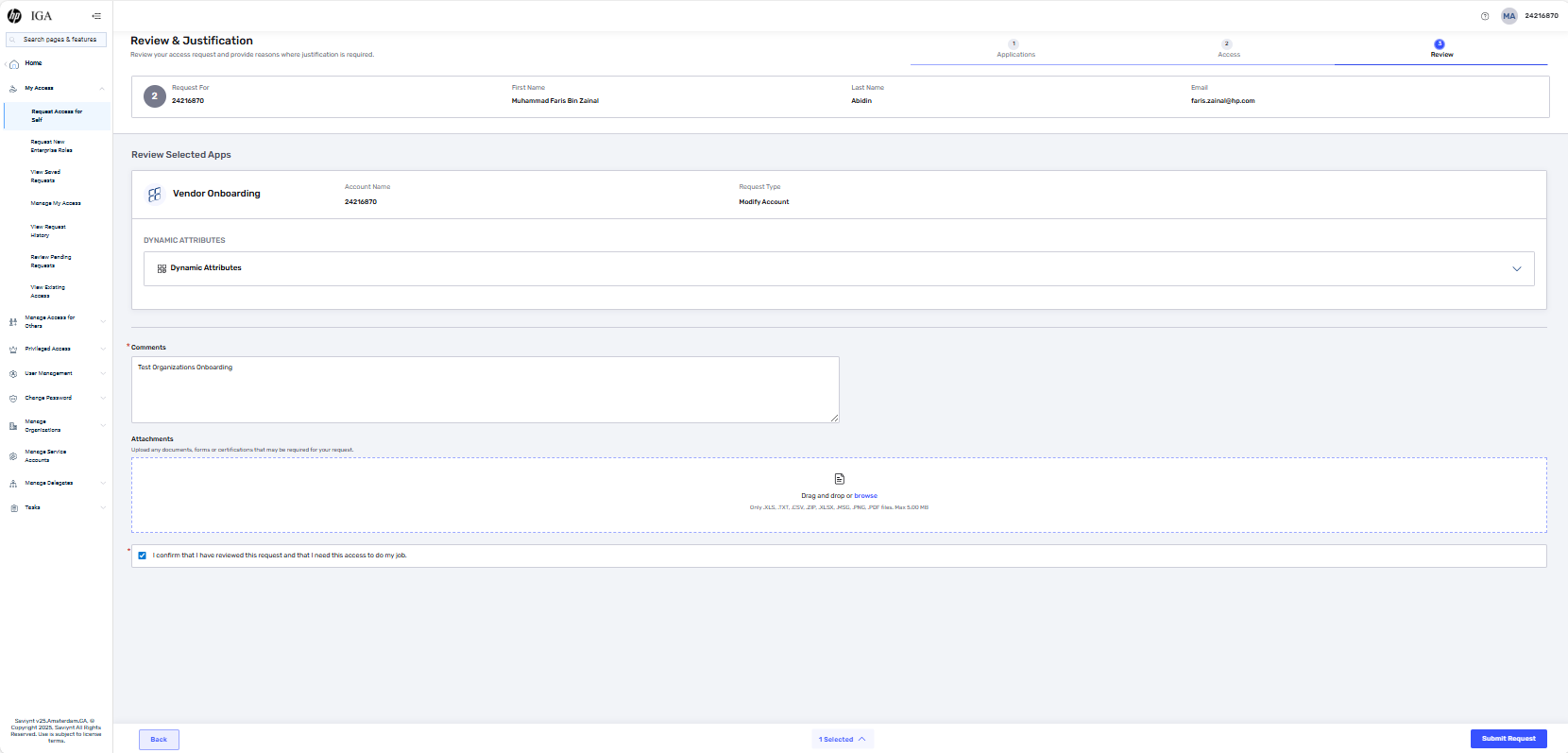
- Click Submit Request.