The HP Command Center (HPCC) is a cloud-based portal for secure remote and outcome-based solution management. Using HPCC, HP channel partners easily discover, subscribe, deploy and configure apps to a customer’s printing fleet with a few clicks.
Apps can gain exposure to customers around the globe and an integrated payment platform which allows direct purchases with a single Agreement. Once a subscription is activated, apps can be immediately installed on customer devices or scheduled to install at a specific time.
As an app developer, you will be granted access to HPCC. There you can take your latest app on a "test flight" to see how your app is being shown in the catalog and install/configure/demo it on a small number of real devices (Demo Pool) before anyone else can see it in the catalog. You can also install/configure/demo any of your previously published apps as well as a select set of HP apps on devices in the Demo Pool.
Note: There are no charges or fees associated with the use of apps with the Demo Pool.
This page covers the following topics:
Enrolling for the "Test Flight"
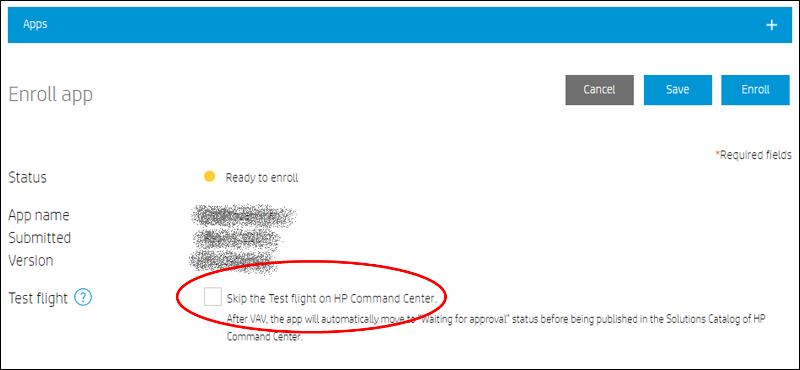
When enrolling your new app, be sure to leave the "Skip Test Flight" checkbox unchecked:
When your first app is submited or a payment method is configured (whichever comes first), HPCC will send an email invitation with an account verification link. From there, you can log into HPCC with your HPID developer account credentials.
Once logged into HPCC, you can click on the Support link to acess User Guides and Videos, submit support requests, etc. Note: HP recommeds reviewing these materials in detail before proceeding.

Taking the Test Flight:
To take a Test Flight, follow these steps:
A. View your“Test Flight” app in the catalog
- Log into HPCC using your developer account
- Locate your “Test Flight” app in the solutions catalog (Here is where you can see exactly how all of the app metadata from AppCenter will be shown to HPCC users after you complete the test flight). Note: There is no need to add it to your portfolio, your "Test Flight" app was automatically added to your Demo Pool.
- If any of the information (icons, text, links, etc.) appear incorrect, you can go back to the App Center to correct it.
B. Onboard device(s) to the Demo Pool (You can onboard up to 20 devices to the Demo Pool)
- The device to be onboarded must not be in LDB mode
- Launch the HPCC onboarding app from the front panel (Note: You may need to unhide it using the Home Screen Customization page in the EWS.)
- Follow the instructions to claim the device into HPCC (this will include logging into HP Command Center using your HPID developer account)
- When assigning the device to an account, choose “Demo Pool”
C. Verify onboarding and device sync
- Log into HP Command Center using your developer account
- Choose the Demo Pool account (You should see your “Test Flight” app in the apps list and your onboarded device(s) in the device list)
- Hover over a device and click the (i) symbol
- In the device details, make sure the initial sync has completed. (This might take a few minutes. If initial sync fails, you can manually force a new sync operation.)
D. Install the “Test Flight” app on Demo Pool device(s)
- Log into HP Command Center using your developer account
- Choose the Demo Pool account (You should see your “Test Flight” app in the apps list and your onboarded device(s) in the device list)
- Hover over your “Test Flight” app and click “Manage”
- Click “Install”
- Choose device(s) to install the app onto and follow instructions to initiate the install task
- Monitor the install task to make sure it succeeds (if it fails, you can try installing again)
E. Configure the app (if your app supports the remote config/MOC file feature)
- Log into HP Command Center using your developer account
- Choose the Demo Pool account (You should see your “Test Flight” app in the apps list and your onboarded device(s) in the device list)
- Hover over your “Test Flight” app and click “Manage”
- Click “Configure” and follow the instructions
Completing the Test Flight
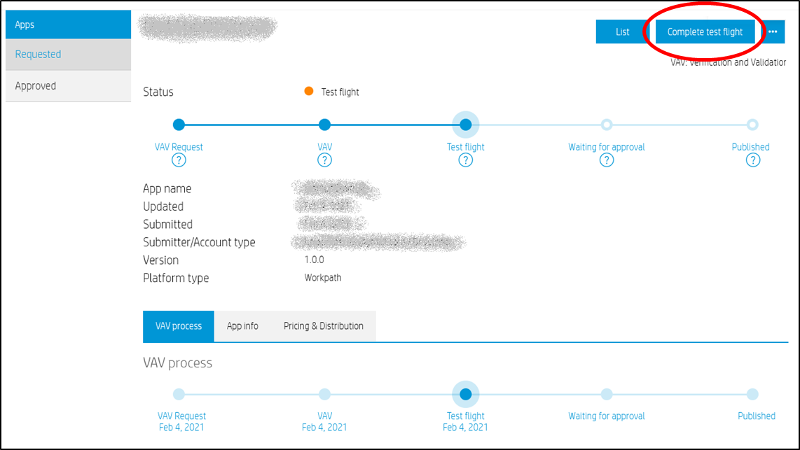
Once you have verified all of the content and features in HPCC and are ready to publish your app to others, you must return to the App Center to complete the test flight by clicking on "Complete test Flight" to move your app to the next step of the publishing process.