Self-Distribution – An Alternative to HP Command Center
While HP Command Center (HPCC) provides convenient remote management and advanced security monitoring of Workpath apps on distributed fleets of devices, some customers would prefer to manage their Workpath apps outside HPCC. And while HP and our channel partners provide exceptional Workpath services and support via HPCC, some customers would prefer to work directly with Workpath app developers.
To meet the needs of those customers, HP has introduced a Workpath app self-distribution option. (More information can be found in this customer FAQ.)
Firmware version 5.9.2.2 or later is required for most models. The mono A4 5502, 5602, X504, X530, 6501, 6600, X603, and X627 series will be compatible starting with upcoming FW release 5.10.0.6.
This page covers the following topics:
Self-Distribution
It is important to note that the change being introduced here is in app distribution, not app registration and approval. The App Center must still be used to document and submit all apps for VAV.
If you wish to distribute an app directly to your customers, you will download the VAV-approved and HP signed HPK file from the HP App Center.
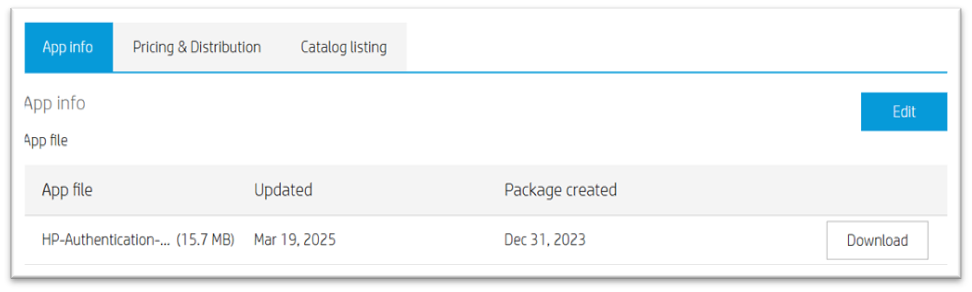
The HPK file may then be distributed to your customers by whatever means you prefer (downloaded from your website, sent from you in email, delivered via your distributors, etc.).
You now have the following distribution options for your apps:
1. HPCC Only
To distribute your app through HPCC only, simply continue managing your app as you have always done to reach the published state. No additional steps are required.
2. Self-Distribution Only
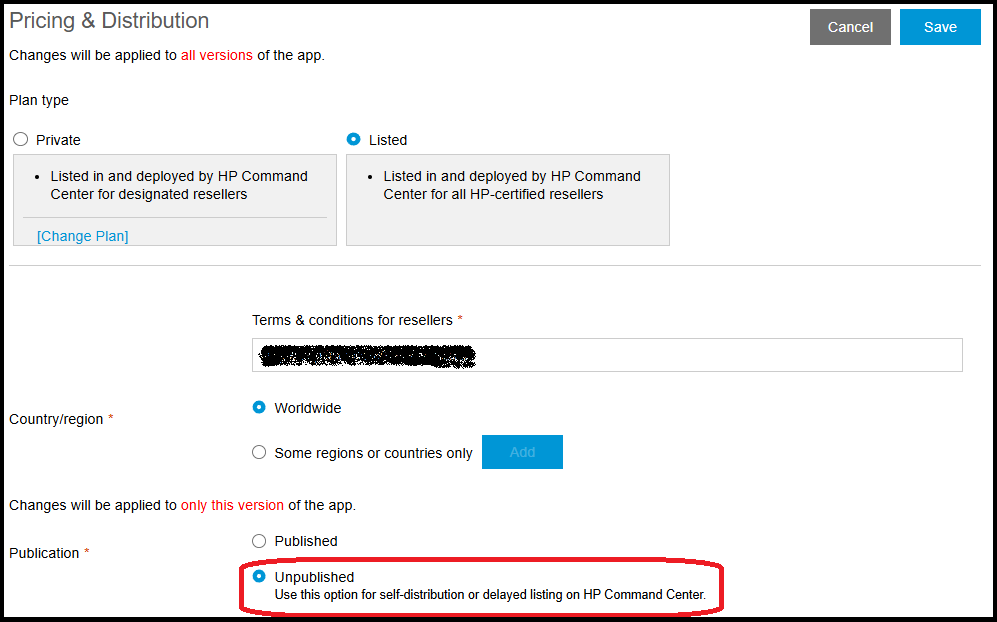
To keep your app from being made available in HPCC, you must ensure you app remains in the unpublished state. In the unpublished state, your VAV-approved app will still be signed and available for download and distribution outside HPCC.
Typically, you will use a combination of Listed and Unpublished as shown below. However, if you are also a reseller in HPCC you may instead publish Privately to only your own reseller account.
3. Both HPCC and Self-Distribution
To distribute your app both ways, simply continue managing your app for HPCC as you have always done to reach the published state. But you can now also download and distribute your VAV-approved app outside HPCC.
Device Licenses
Before an app can be installed and run on your customer’s device outside HPCC, the device must be Licensed to allow Workpath apps to run without the HPCC connection. Device licenses are issued to a specific device and are not transferrable.
There are two license types:
- Workpath Essential (free, perpetual) – The Workpath Essential license allows all 3rd party Workpath apps and a select set of HP Essential apps to be installed and run on the licensed device.
- Workpath Premium (fee, multiple terms) – The Workpath Premium license allows a select set of HP Premium apps to install and run on the licensed device .
Note: A complete list of HP Apps covered by each license type can be found here.
Note: The apps covered by each license type are mutually exclusive. So, if a customer requires an Essential app and a Premium app, both license types must be acquired and installed.
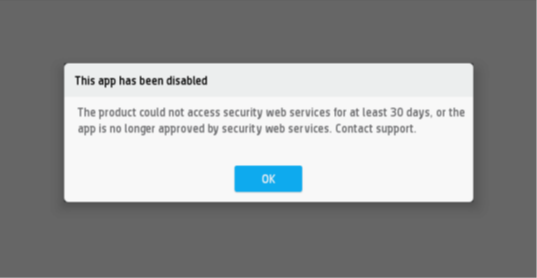
Important: If an app is installed outside HPCC on an unlicensed device, when the app is launched the following error message will be displayed:
License Acquisition
Your customers may acquire licenses for their devices from an HP Reseller. Please direct your customers to search for an HP Reseller here.
To acquire licenses on customers' behalf or for testing:
- Create a company account on the HP Partner Portal. You can then use your company account to access the Licensing Portal. (Note: Your company may already have an HP Partner Portal account. Please check with your Company Administrator before creating a redundant one.
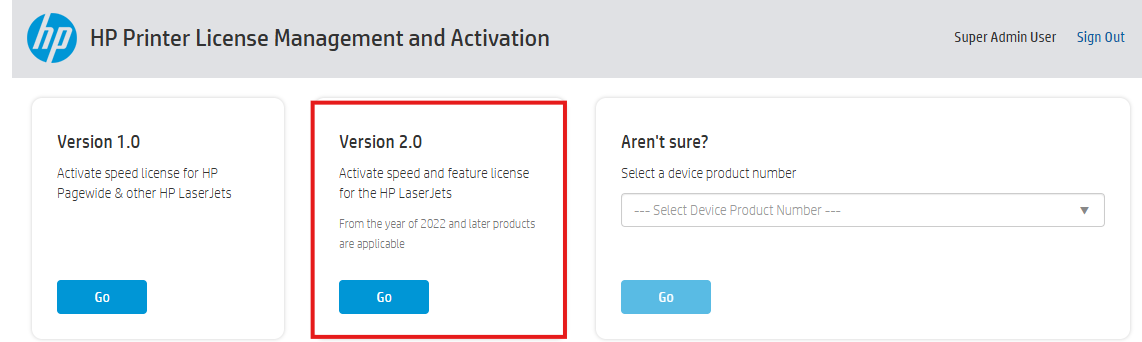
- Visit the HP Printer License Management and Activation Portal.
- Select Version 2.0.
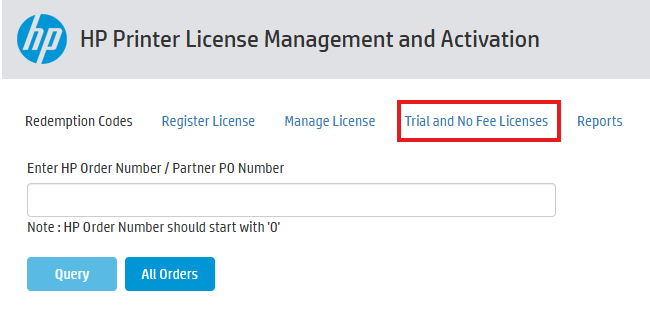
- Select "Trial and No Fee Licenses"
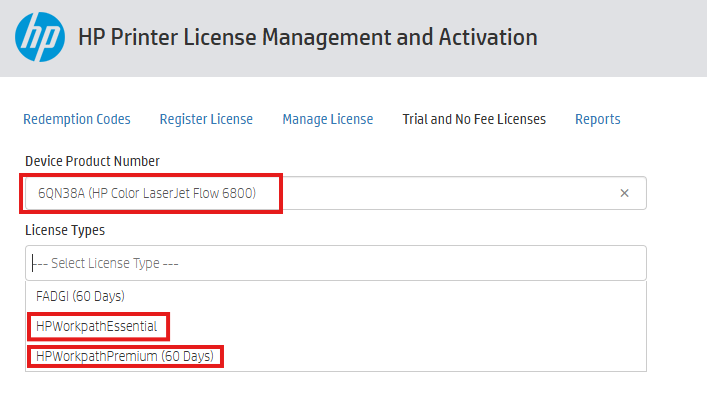
- Select Device Product Number and License Type, then "Get License"
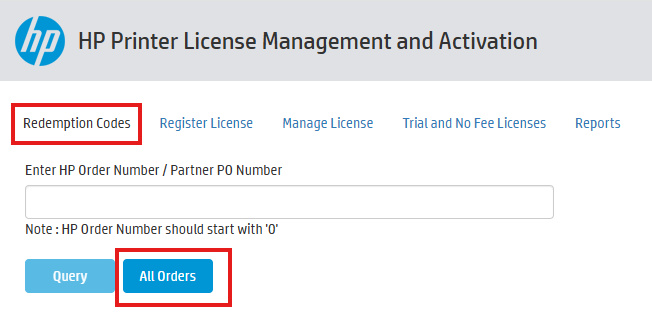
- Navigate to "Redemption Codes" and select "All Orders"
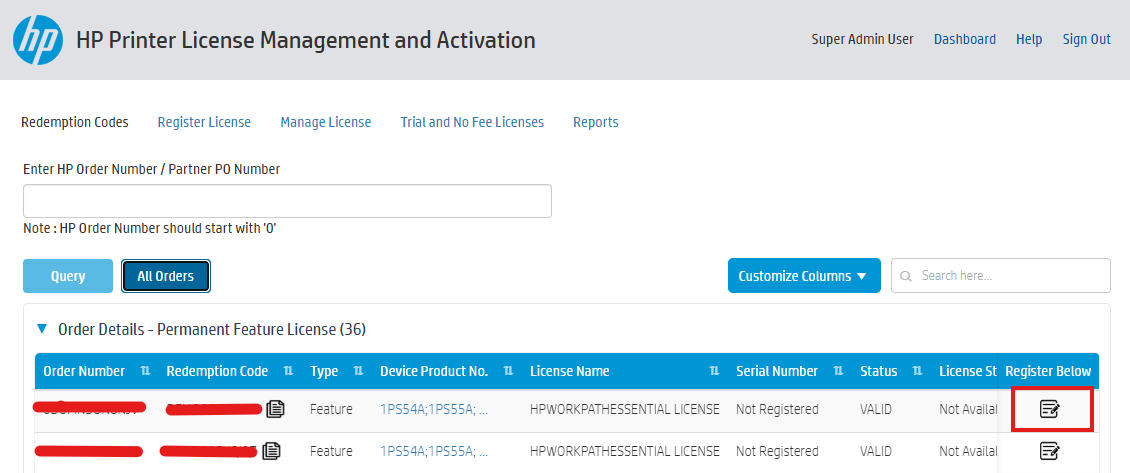
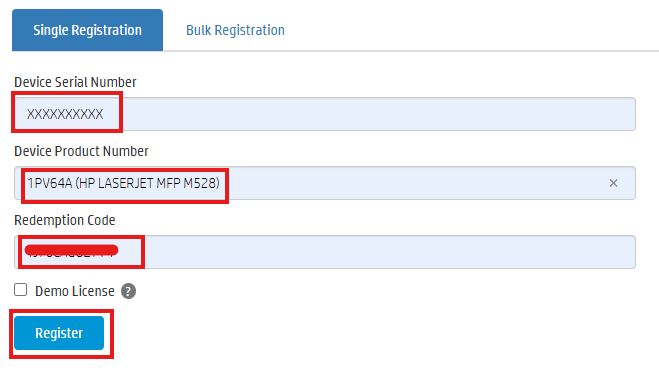
- Click "Register" icon
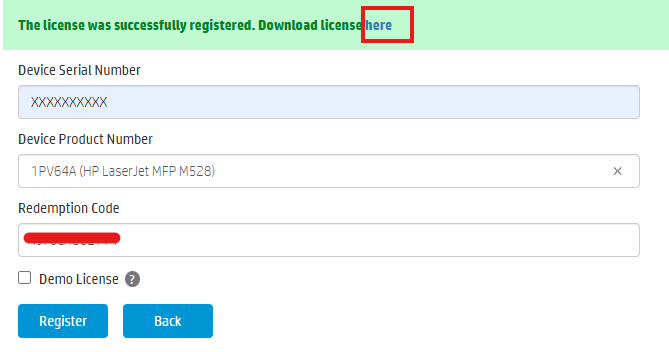
- Proceed with Single or Bulk Registration
- Download license
Flexible Deployment - License and App Management
Licenses and Apps can be managed outside HPCC in a variety of ways to fit any given situation.
- Custom Tools Using APIs – HP has published the API specifications for Workpath License management and Workpath app management. You are welcome to use those APIs to develop any tools to help your customers manage Workpath licenses and Workpath apps on their devices. See the Workpath License Manager API specification and the Workpath Package Manager API specification for details.
- Command Line Interface (CLI) – The Workpath App Manager tool is a command line tool from HP that may be distributed to your customers to help them manage Workpath licenses and Workpath apps on a large number of devices. You can download the tool from here.
- HP Web Jetadmin (WJA) – The most recent version of HP’s flagship printer fleet management tool, WJA, allows customers to easily and efficiently manage Workpath licenses and Workpath apps using the tool they already use to manage all other aspects of their large printer fleets.
- Device Embedded Web Server (EWS) – When managing a small number of devices on an accessible network, it may be easiest to manage Workpath licenses and Workpath apps through the device’s EWS.
- Device USB – When managing a single device without access to the customer’s network (EWS), it may be easiest to manage Workpath licenses and Workpath apps through the device’s USB port.